Sound Profile (Volume control)
- 3.7
- Rating
- 1.00M
- Installs
- Free
- Price

 Analysis by App-foxy
Sound Profile is the kind of Android personalization app that solves a small but surprisingly persistent problem: keeping call volume and notification volume under control without treating every sound as the same. I installed it with that specific annoyance in mind, and I found its appeal in the separation itself. Instead of turning the phone’s overall volume up or down and hoping the result works, I could think about calls and alerts as two different parts of my day.
The app is developed by Corcanoe and has been available since May 18, 2012. It is free to start, with optional in-app purchases ranging from $0.99 to $6.49 per item. Its age rating is Everyone, and it runs on Android 9 or later. Those details make it easy to try on a modern Android phone, although the exact experience can still depend on the phone maker’s sound controls and Android’s own behavior.
What I like most is that Sound Profile is not trying to replace every setting on the phone. It focuses on a practical distinction: call volume and notification volume should not always move together. That makes it useful for people who want to hear an incoming call clearly but keep message alerts restrained, or who want notifications audible during the day without having the phone ring loudly in a quiet place.
You May Also Like

 Blood Strike: 2.5 Anniversary
Blood Strike’s Loadouts Turn Every Drop Into a Tactical Gamble
A close look at Blood Strike’s custom loadouts: how fast access to signature weapons reshapes its battle royale rhythm, rewards preparation, and narrows the gap between fights.

 Pandora - Music & Podcasts
Pandora’s Music Is Easy to Start, but Harder to Recover
Pandora’s strength is its low-effort path from a seed to a station. Its weak spot is how much confidence it asks you to place in connection, setup, and quiet recovery.

 8 Ball Pool
 Is Built on Rivalries, Rematches, and Routine
A close look at the rivalries, rematches, shared routines, and unanswered safety questions that turn a quick pool match into a persistent mobile community.

 Samsung Music
’s Quiet Strength Is Playing What You Already Own
Its reach comes less from spectacle than from dependable access to a personal library. That simplicity is both the app’s strongest retention engine and its ceiling.

 AccuWeather: Weather Radar
AccuWeather Review: A Quick, Clear Forecast for Everyday Decisions
For everyday plans, the best forecast is the one you can understand quickly. AccuWeather makes rain timing, radar, and local conditions easy to act on, with a few trade-offs.

 Hill Climb Racing
Why Hill Climb Racing Still Turns Crashes Into One More Run
A tiny car, a bumpy hill and one more upgrade: Hill Climb Racing keeps resurfacing because its simple chaos makes every near-miss feel personal.
More From Our News Desk



Building a dependable everyday sound routine
I find a dependable sound routine starts with deciding what I need to hear, rather than adjusting levels whenever the phone surprises me. A steady baseline makes it easier to notice when Android’s own sound modes or a connected device are affecting the result. From there, I can work through a simple setup check and recover quickly when the balance changes.
Start with a normal-day baseline
My first recommendation is to avoid changing everything at once. I began by setting the phone to the level I would normally use for calls, then adjusted notifications separately. This simple baseline matters because it gives the app a predictable job. If the phone is already affected by media volume, alarms, Do Not Disturb, Bluetooth audio, or a manufacturer-specific sound mode, it becomes harder to tell which control is responsible for the result.
For a typical weekday, I prefer a call level that is easy to notice when the phone is in a pocket, while keeping notifications low enough that a busy group chat does not become a constant interruption. Sound Profile is helpful here because it encourages that deliberate split instead of the usual one-slider compromise.
A realistic example is my morning commute. I may need to hear a call over street noise, but I do not want every email or calendar reminder to compete with the environment. Later, at a desk, the ideal balance changes. The call volume can remain useful while notification sounds become quieter because the screen and vibration already provide enough awareness. The app is most valuable when I treat these as repeatable situations rather than random adjustments.
Use the phone’s own controls as a reference
Sound Profile does not remove the need to understand Android’s volume panel. I still check the phone’s regular controls after installing it, especially when switching between normal sound, vibration, and silent behavior. The app works best as a focused volume tool, not as a replacement for every audio rule built into the operating system.
This distinction prevents a common mistake: assuming that separating two sliders will automatically override every other sound decision. Media playback, alarms, connected headphones, and system-level interruption settings can follow their own paths. When something sounds different from what I expected, I check those areas before blaming the profile settings.
That troubleshooting habit is one of the less obvious benefits of using the app. It teaches me to identify the sound category first. If a video is too loud, changing notification volume will not help. If a call is difficult to hear, raising media volume may do nothing. The separation is useful only when I adjust the control that actually governs the sound I care about.
Check the result with real sounds
I would not judge the setup only by dragging sliders. I test it with an actual incoming call and a normal notification, because the phone’s speaker, case, room acoustics, and current connection can change how loud something feels. A level that seems fine in a quiet room may be too soft outdoors, while a setting that works at a desk may feel intrusive beside another person.
Testing also helps reveal whether the phone is applying the desired separation consistently. If the call and notification levels appear to move together, I repeat the adjustment slowly and check the Android volume panel. On some devices, the operating system may present related controls in a way that makes the relationship look less independent than expected.
Keep one habit instead of chasing perfect settings
The most reliable workflow is to choose a few situations and make small changes at predictable moments. I use a daytime baseline, a quieter evening level, and a quick check before entering places where loud alerts would be awkward. I do not constantly fine-tune the phone. That would defeat the purpose of a convenience app.
For people who receive many notifications, this approach is especially useful. Lowering alerts does not mean becoming unreachable. Calls can remain prominent while messages, social updates, and background reminders stay in the background. For people who rarely receive calls but depend on notifications, the opposite balance may make more sense.
Settings worth checking before daily use
The first setting worth checking is the relationship between call and notification controls. I make sure I can identify which slider changes which behavior, then leave the phone alone for a few minutes and observe whether the result matches my intention. This sounds basic, but it avoids building a routine around a mistaken assumption.
Next, I look at whether the phone is currently in a mode that changes how sounds are delivered. Silent and vibration choices can make a volume adjustment seem ineffective, while Do Not Disturb can affect interruptions independently of loudness. Sound Profile can help set the level, but it cannot turn a blocked alert into an audible one.
I also check whether the phone is connected to another audio device. A car system, earbuds, or speaker may receive sound differently from the handset. If I am testing a profile, I disconnect those devices first, confirm the behavior through the phone speaker, and only then reconnect them. This is a practical way to separate an app issue from an output-device issue.
Think about notification overload, not just loudness
A quieter notification stream is not always a better notification stream. If every application is allowed to alert me, lowering the volume can hide important messages among unimportant ones. I get better results by combining Sound Profile with Android’s notification controls: keep essential conversations visible and reduce or silence noisy categories at the operating-system level.
This is an important trade-off. The app adjusts how loud the alert is, while Android’s notification management decides which alerts deserve attention. Using both lets me keep a useful call level without relying on a loud notification stream to tell me what matters.
Consider vibration as a separate decision
When I lower notification volume, I think about whether vibration should carry more of the responsibility. In a meeting or library, a quiet sound paired with vibration may be more practical than either a loud alert or total silence. However, vibration strength and behavior are controlled by the phone, so I treat that as a companion setting rather than something Sound Profile can fully manage.
This combination works well for people who want awareness without disturbing others. It is less useful for someone who keeps the phone on a desk and rarely notices vibration. In that case, reducing sound may simply make alerts easier to miss, and a carefully selected audible level could be the better choice.
Faster patterns for people who change settings often
Experienced use is less about making complicated profiles and more about reducing repeated decisions. I keep a mental sequence: check whether the phone is in normal sound mode, adjust call volume, adjust notification volume, and test one alert. Following the same order prevents me from accidentally correcting the wrong category.
For a busy day, I make the adjustment before the situation begins rather than after the first interruption. Before a presentation, I lower notifications and verify the call setting separately. Before traveling, I test the call level in the expected environment. Before sleeping, I review the phone’s broader interruption settings instead of assuming that a volume change alone is enough.
This repeatable workflow is more dependable than repeatedly opening the app whenever a sound feels wrong. The app gives me a focused control point, but the real convenience comes from turning that control into a habit.
Use shortcuts only when they fit your phone
Android phones differ in how quickly they expose volume controls. Some place useful controls in the hardware buttons or expanded volume panel, while others require extra taps. I use whichever route is fastest on my device and keep Sound Profile as the place where I confirm the separate relationship between calls and notifications.
I would not promise that every phone offers the same shortcut behavior. Manufacturer interfaces can change how volume panels, sound modes, and quick settings work. If a shortcut appears to change a general sound mode rather than the specific level I need, I return to the app and make the adjustment directly.
A useful pattern is to prepare one setting before entering a predictable environment, then use the phone’s normal controls for small corrections. For example, I can establish a quiet-notification baseline before a work session and make a minor change with the hardware buttons if the room is noisier than expected. This avoids rebuilding the entire setup for a temporary change.
Where the app is genuinely stronger than the usual alternative
The usual alternative is Android’s built-in volume panel. It is already available and may be enough for people who only change volume occasionally. Sound Profile becomes more attractive when the built-in controls make the distinction between calls and notifications inconvenient, unclear, or too easy to overlook.
Its advantage is focus. Rather than searching through several sound categories every time, I can concentrate on the two levels that matter most for this use case. That is a modest improvement, but one that adds up for people who frequently move between home, work, travel, study, and shared spaces.
On the other hand, Android’s own controls are usually the better choice for users who need broad audio management. If the main concern is media output, alarm behavior, per-application notification channels, or sophisticated interruption rules, the system settings provide the wider toolkit. I see Sound Profile as a specialist companion, not a universal sound-management solution.
Advanced limits that affect the experience
The biggest limitation is that volume separation does not equal complete sound automation. The app can help me choose different levels, but it does not make every context-aware decision for me. A phone may still behave differently when connected to Bluetooth, when an application uses its own audio behavior, or when Android’s interruption rules take priority.
Another limitation is consistency across devices. Android 9 and later provide the foundation for the app, but phone manufacturers can arrange sound settings differently. A control may be easy to reach on one handset and less obvious on another. I recommend checking the result after major system changes or when moving to a new phone rather than assuming the old routine transferred perfectly.
The free entry point is useful for testing whether the app fits my routine. Optional purchases are available from $0.99 to $6.49 per item, so I would first establish that the basic workflow solves a real annoyance before considering any paid option. I would not install it solely because the idea sounds convenient; the value depends on how often I need separate call and notification levels.
The app also is not the right answer for someone who wants aggressive automation based on location, time, calendar events, or individual applications. In that situation, a broader automation tool or the phone maker’s own sound modes may be a better match. Sound Profile is more appealing when I want direct control and a repeatable manual routine rather than a large rule system.
Who should use it, and who should skip it
I recommend it to people who regularly miss calls because notifications are too quiet, or who keep notifications loud because they are afraid of missing calls. It also suits anyone who moves between noisy and quiet environments and wants a quick way to maintain a sensible balance without diving through several Android menus.
It is a particularly good fit for users who receive many alerts but only need a few of them to be prominent. Separating the levels lets me keep calls noticeable while reducing the pressure created by constant message sounds. It can also help people who share rooms, work in quiet offices, or study near others.
I would skip it if the phone’s built-in controls already make this distinction effortless and I rarely change it. I would also look elsewhere if my priority is per-app notification management, scheduled automation, advanced profiles, or control over every type of audio. Installing another app for a problem I do not actually have would add clutter instead of convenience.
What the community size tells me
The app has passed one million installs, with an average rating of 3.7 from roughly sixteen thousand ratings and about two thousand three hundred written reviews. I read that as evidence of a useful but not universally seamless tool: enough people find the narrow purpose worthwhile, while the middling average suggests that device differences and expectations matter.
Its current version is 13.03, which shows that Corcanoe has continued maintaining the app over time. Still, a long-running app can feel different across Android skins, so I would judge it on the behavior of my own phone rather than on the install count alone.
My final recommendation after making it part of a routine
Sound Profile earns its place when separate call and notification levels solve a recurring daily irritation. I like it because the idea is clear, the starting cost is low, and the workflow encourages a better understanding of Android’s sound categories. It is not flashy, and that is part of its strength: the useful result is simply a phone that rings when I need calls and stays calmer when notifications are plentiful.
My advice is to install it, establish a normal-day baseline, test a real call and notification, then combine it with Android’s notification and interruption controls. Do not expect it to automate every context or control every audio source. Its best use is as a focused control for a repeatable sound habit, not as a replacement for the entire operating system.
For that reason, I would recommend it to practical Android users who want a clearer separation between calls and alerts. If that is exactly the annoyance you are trying to fix, the app is worth trying. If you need elaborate automation or complete audio management, the usual system tools—or a broader automation solution—will probably serve you better.
FAQs for Sound Profile (Volume control)
01What is Sound Profile (Volume control) used for?
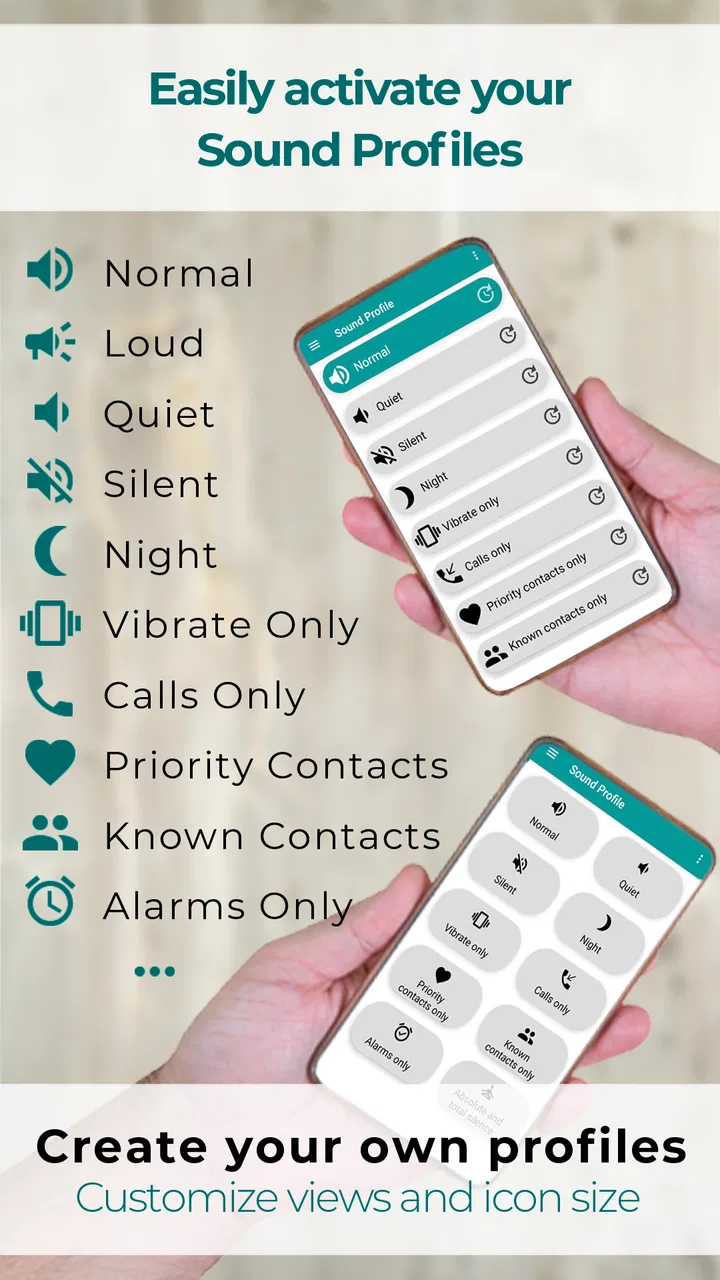
Sound Profile (Volume control) is designed to make managing your device’s audio settings more convenient. Instead of adjusting each volume slider manually, you can use profiles to quickly change ringtone, notification, media, alarm, and system sounds. It is particularly useful when switching between situations such as work, meetings, sleep, travel, or outdoor activities where different sound levels are needed.
02Can I create and customize different sound profiles?
Yes, the app’s main purpose is to let you create or use separate sound profiles for different situations. Depending on your device and Android version, you may be able to adjust individual volume levels, vibration behavior, ringtone settings, notification sounds, and other audio preferences. This makes it possible to create profiles such as Silent, Normal, Loud, Meeting, or Night instead of repeatedly changing settings by hand.
03Does Sound Profile (Volume control) work automatically according to time or location?
The availability of automation depends on the version of the app, your device manufacturer, and the permissions granted to it. Some installations may support scheduled profile changes or context-based switching, while others focus mainly on manual control. Before downloading, check the app’s current feature list and test whether automation works reliably on your phone, since Android restrictions can affect background actions.
04Does the app require special permissions to control sound settings?
Sound Profile (Volume control) may request permissions needed to change audio levels, manage notifications, respond to schedules, or detect certain device conditions. These permissions are related to the app’s core functions, but you should review them carefully before accepting. Android versions and manufacturers handle sound-control permissions differently, so some features may be limited unless access is enabled in system settings.
05Is Sound Profile (Volume control) compatible with every Android phone?
The app may work on many Android devices, but compatibility is not guaranteed across every model or operating-system version. Manufacturers sometimes modify volume controls, notification behavior, Do Not Disturb rules, and background activity limits. Basic profile switching may work normally, while advanced features could behave differently. Checking the required Android version, recent user reviews, and your phone’s permission settings is recommended before installing.
Pros
- Quickly switch between silent
- vibrate
- and normal sound modes.
- Useful volume controls for media
- calls
- alarms
- and notifications.
- Simple interface makes profile changes easy to understand.
- Can help reduce interruptions during meetings
- sleep
- or travel.
- Lightweight app with minimal impact on device storage and performance.
Cons
- Some features may require accessibility or system permissions to work.
- Compatibility can vary across Android versions and device manufacturers.
- Automatic profile changes may not work reliably on every device.
- Advanced scheduling options may be limited compared with premium tools.
- Ads or in-app purchases may be present depending on the app version.

Sound Profile (Volume control)
Gallery